 daylight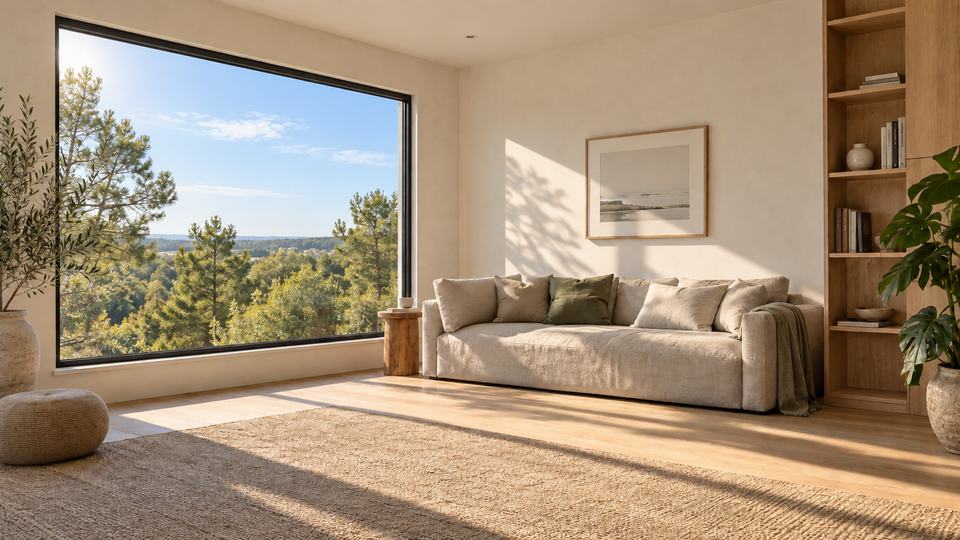
THE PRACTICAL CHECKLIST
What makes a video-call background look natural?
The best background supports the conversation. It has enough detail to feel like a place, but not so much contrast or movement that people watch the room instead of you.
- Leave visual space around your head and shoulders. A calm wall, window or distant view usually separates more cleanly than shelves full of small objects.
- Match the direction of the light. If your face is lit from the left, a background with believable light from that side feels more coherent.
- Keep movement subtle. Slow changes in light and weather feel present without becoming a loop people notice.
- Choose depth over clutter. A view with a clear foreground, middle distance and horizon gives the frame structure while keeping it readable.
- Check the edges before the call. Hair, glasses and moving hands reveal whether foreground processing is holding up on your computer.
Quick test: shrink your preview to the size it will occupy in a group call. If your face still reads first, the background is doing its job.
THREE COMMON APPROACHES
Still, looping or living?
Still image
Simple and predictable. It can feel frozen when the lighting in your room changes, but it uses little processing power.
Looping video
Adds motion, though a short repeating clip can draw attention to the loop and may not match the time outside.
Living scene
Changes between authored conditions over the day. Daylight uses complete scene images for different light and weather rather than a repeating video.
A FULL DAY IN EACH PLACE
How Daylight changes the scene
Each Daylight scene includes 30 complete conditions: six parts of the day across clear, cloudy, rainy, snowy and foggy weather. The app can follow your local time and optional live weather, or you can set both manually.
The scene changes gently between authored images. It is not a continuous 3D simulation of the sun, and it does not pretend that generated details will remain perfectly identical between every condition. The result is a photographic place that can move from morning to night without playing the same clip again.
Room and outdoor scenes
Choose quiet interiors, open landscapes and other downloadable scene packs. Saved Spaces can remember a complete local setup, while Background only keeps the selected scene in the virtual camera when your webcam is off.
YOUR CAMERA STAYS WITH YOU
Privacy and control
Daylight removes your real background on your computer. It does not upload webcam video for cloud processing, and it does not handle your meeting audio. Location access is optional; you can search for a place or set time and weather manually instead.
An account is optional. The camera, hosted backgrounds, local scene packs, Saved Spaces and current preferences continue to work without signing in. Read the full Daylight privacy details.
COMMON QUESTIONS
Video background questions
Do I need a green screen?
No. Daylight segments the person from the webcam image locally. A plain, evenly lit real background can still improve edge quality.
Will the weather change automatically?
Only if you enable live weather and choose a place. You can turn local time or weather off and hold any condition manually.
Can I use my own backgrounds?
Yes. Daylight can use local background folders alongside downloadable Daylight scene packs.
How do I send the scene to a meeting?
Start the built-in virtual camera, then choose Daylight as the camera in an app that accepts selectable cameras. Follow the virtual-camera setup guide.